Send a client gallery
Share a project as a gallery from where the photos already are: choose the folders the client sees, then copy the link or email it. Nothing uploads again, and originals stay private.
3 min readUpdated 3 November 2026
01Share the gallery
- Open the project and choose Share. The panel opens on Client.
- Choose Choose gallery folders and tick the folders the client should see. Folders you leave out stay private.
- Choose Share Gallery to make it live, then Copy link, or Email client to send it from Total Vault with an optional message.
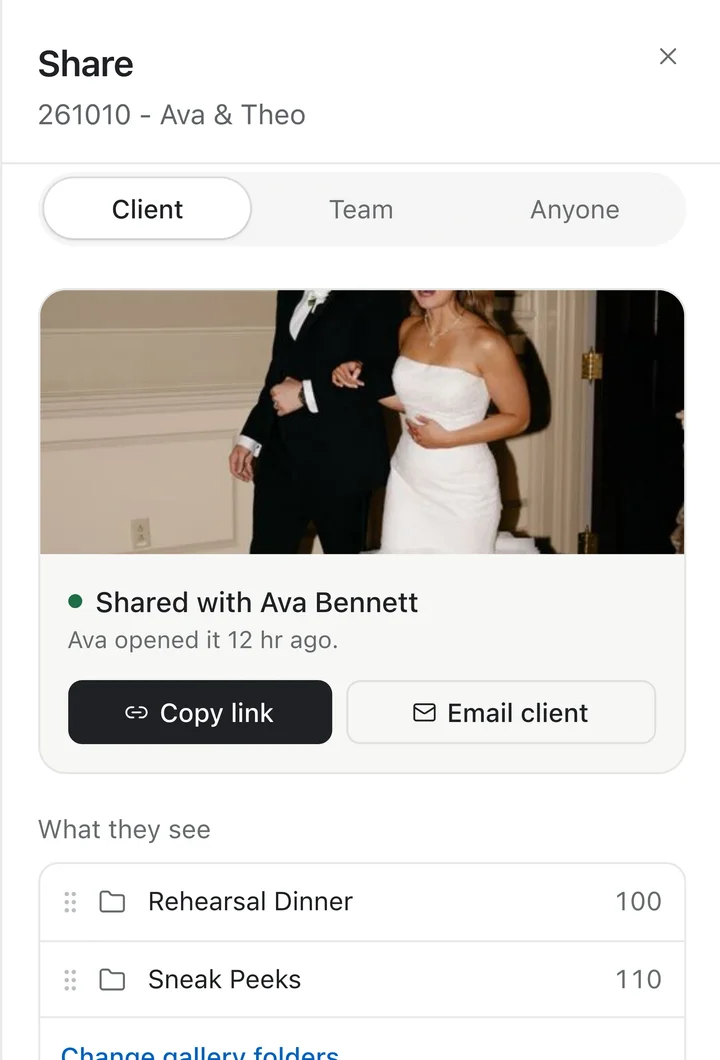
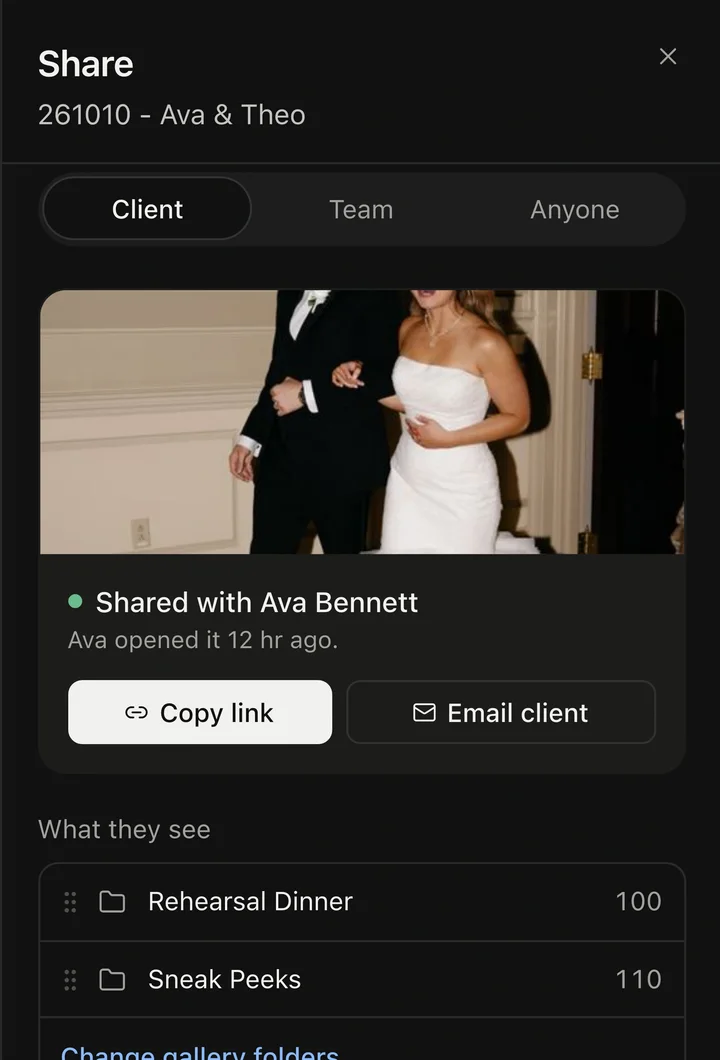
Sending the email also makes the gallery live. Once it is, the project header shows Shared, with Copy gallery link, Email client… and Show QR code in its menu.
02Choose what they see
- Each folder becomes a section of the gallery. Drag folders to reorder them.
- Rename in gallery gives a folder a client-friendly name, like Sneak Peeks, without renaming it in your files.
- Add or remove folders any time with Change gallery folders.
03Gallery settings
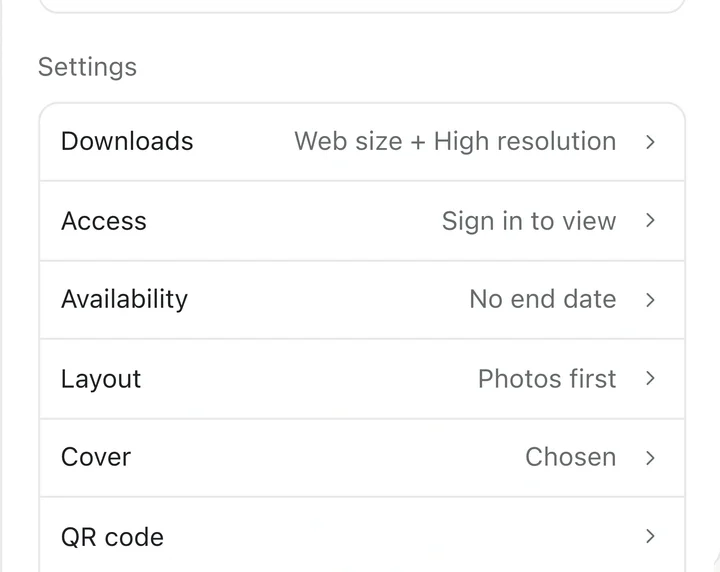
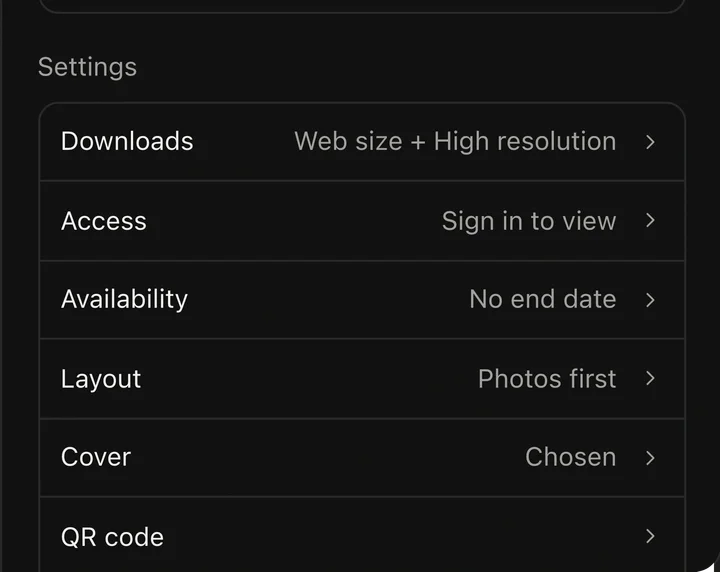
- Downloads: off, web size, high resolution or both, how many per person, and an optional 4-digit PIN.
- Access: anyone with the link, sign in to view, or a password.
- Availability: no end date, an expiry date, or Coming soon before it's ready.
- Layout (photos or video first), Cover, and a QR code to print.
04What stays the same
- The gallery shows the files already in your vault. Nothing is copied or uploaded again.
- Originals and working folders stay private unless you add them.
- Stop sharing gallery turns the link off; your files stay where they are.