Gallery designs and sections
Give a gallery its look: start from a style, choose the cover, and see it on a desktop and a phone. The folders you share become the sections clients move between.
2 min readUpdated 3 November 2026
01Pick a style
- Open Design from the sidebar, from Design next to a project's tabs, or from the Share panel.
- Choose a style: Studio, Outline, Banner, Fine Art, Cinema or Editorial. Then make it yours with the cover, title, photos, color and welcome note.
- Switch the preview between Desktop and Phone as you go.
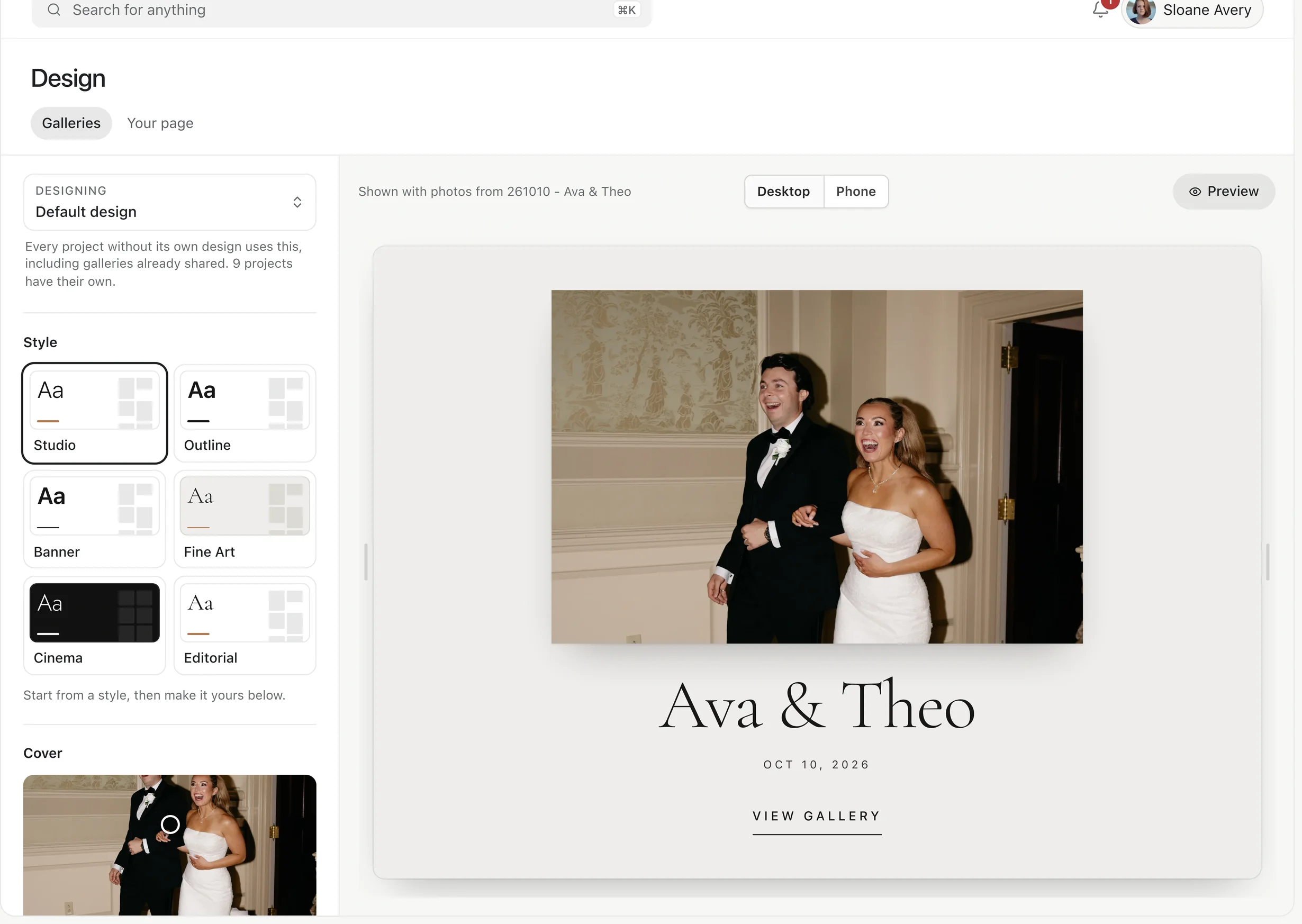
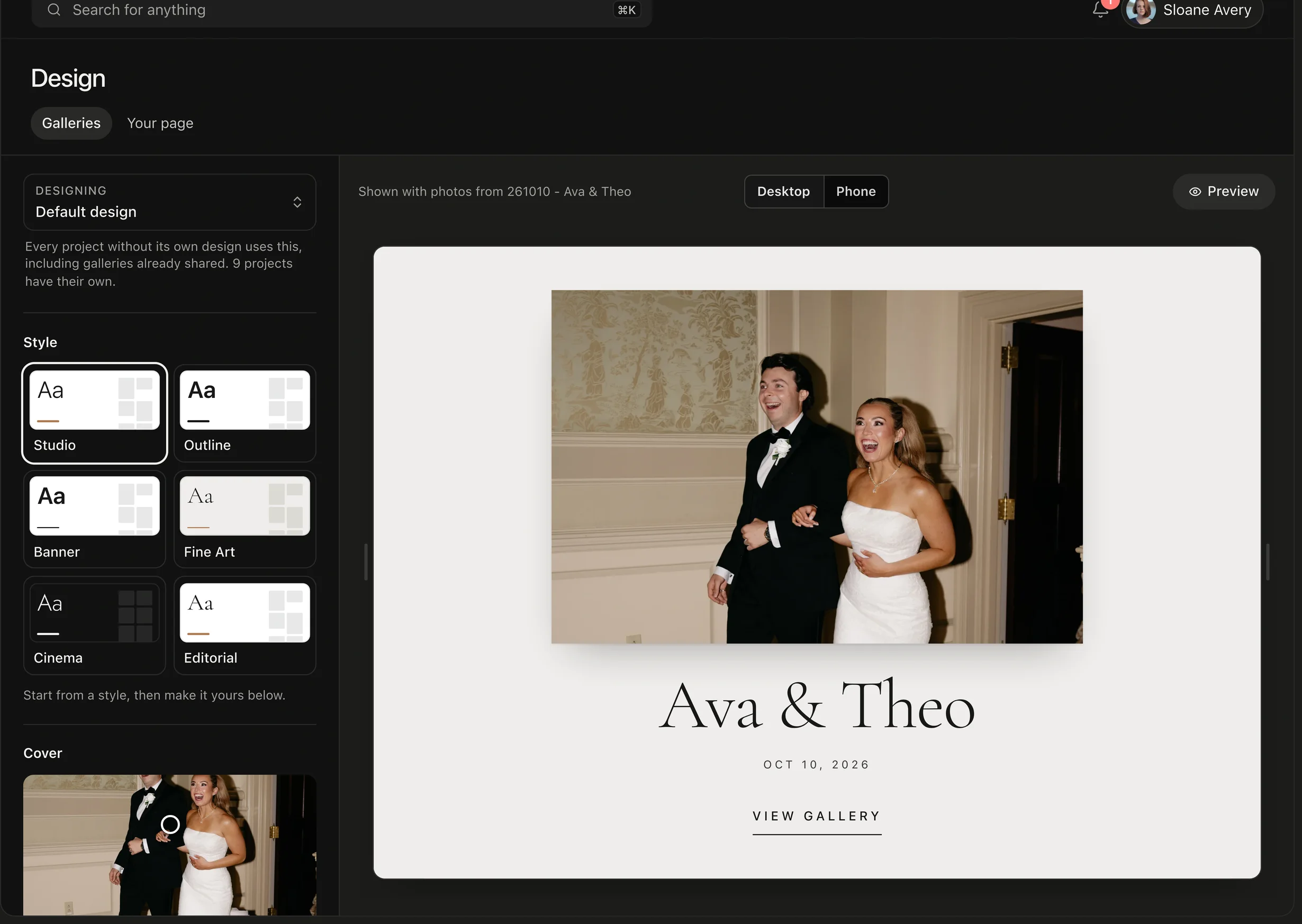
The Default design applies to every project. Change anything for one project and it gets its own; Use default design puts it back.
02The cover
Choose Change photo, click where the focus should be, and pick a Cover layout. Turn on Logo to show your logo on it, or Video on the cover to play a film.
03Sections in the bar
Each folder in the gallery becomes a section in the bar at the top, in the order you set in the Share panel. Sections that don't fit go under More.
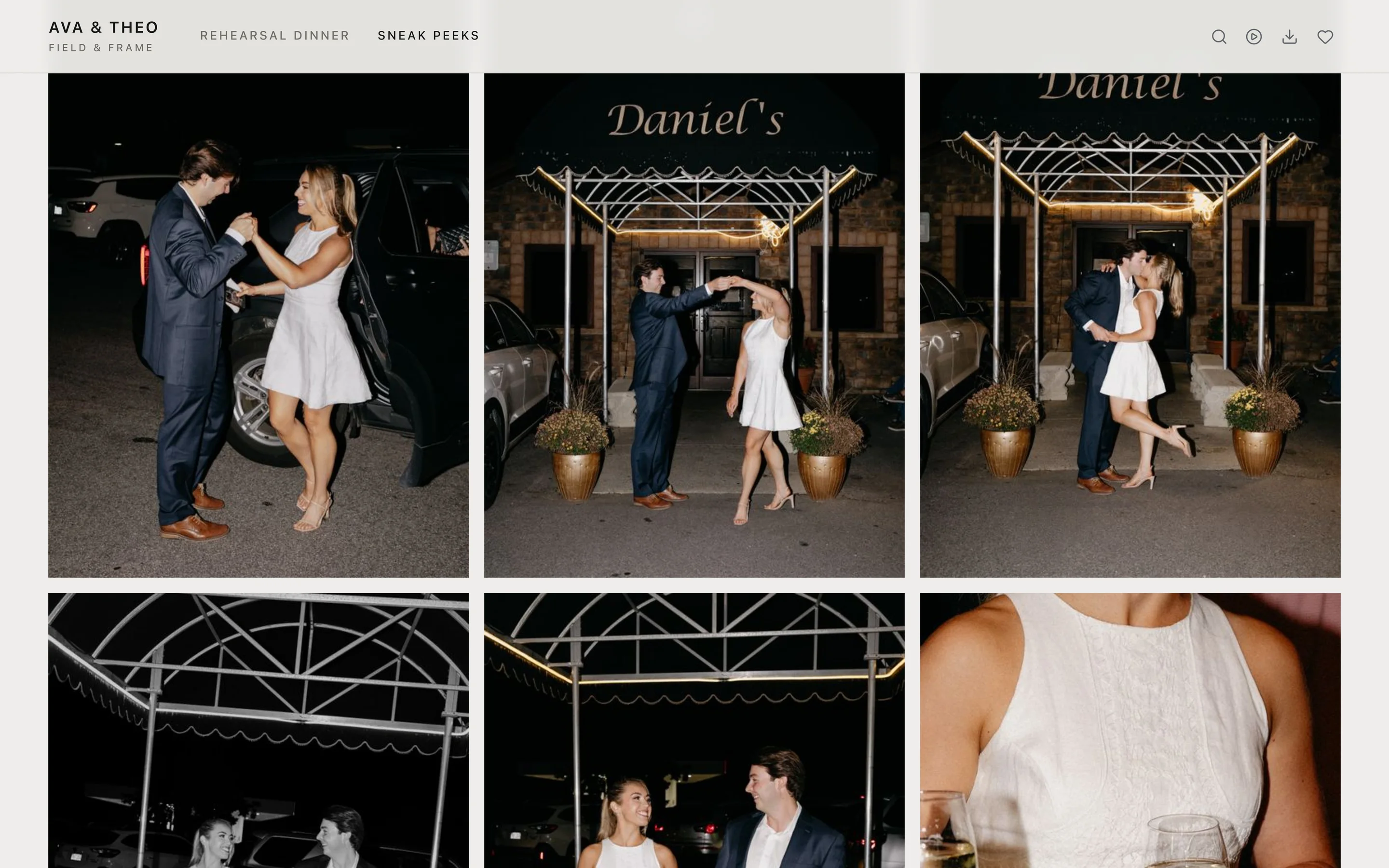
On a phone the sections scroll sideways under the title, and the bar slides away while clients scroll down through the photos.