Comments and mentions
Talk it over on the file itself: comment on any file or folder, mention a teammate with @, and choose whether guests see the thread. Replies, reactions and notifications stay with the file.
3 min readUpdated 3 November 2026
01Comment on a file or folder
- Select a file or folder and open Details, then the Comments tab. Or right-click it and choose Comment (shortcut C).
- Type in the box and press Enter to send. Shift+Enter starts a new line.
- Press ↑ in an empty box to edit the last thing you wrote.
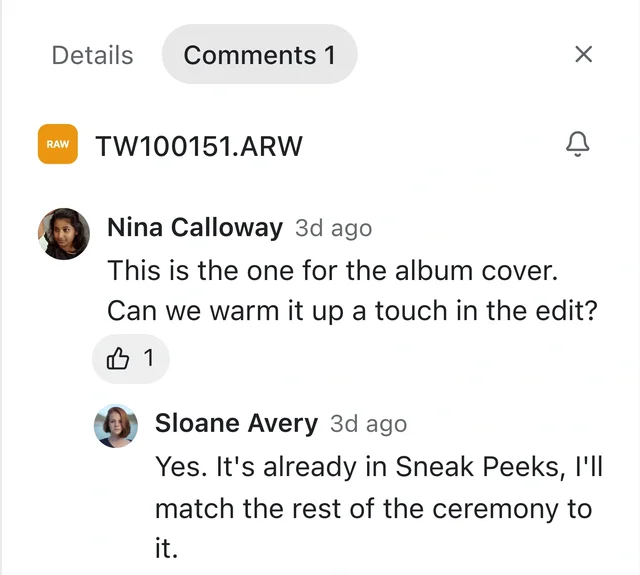
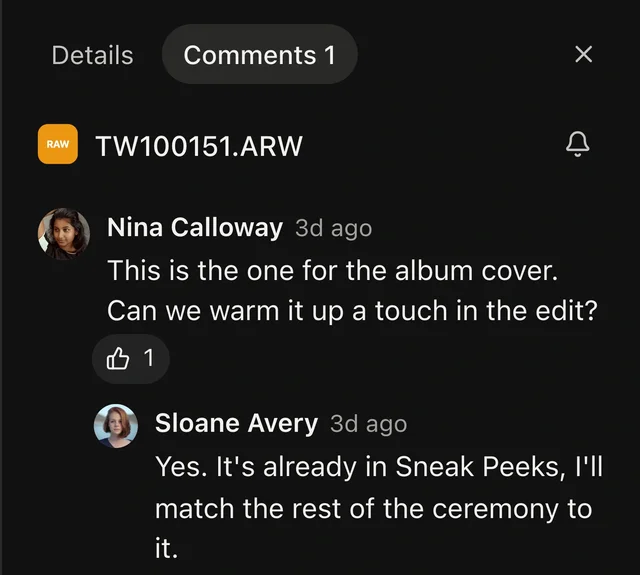
The Comments tab shows a count when a file has open threads, and it stays open as you move from file to file.
02Mention someone
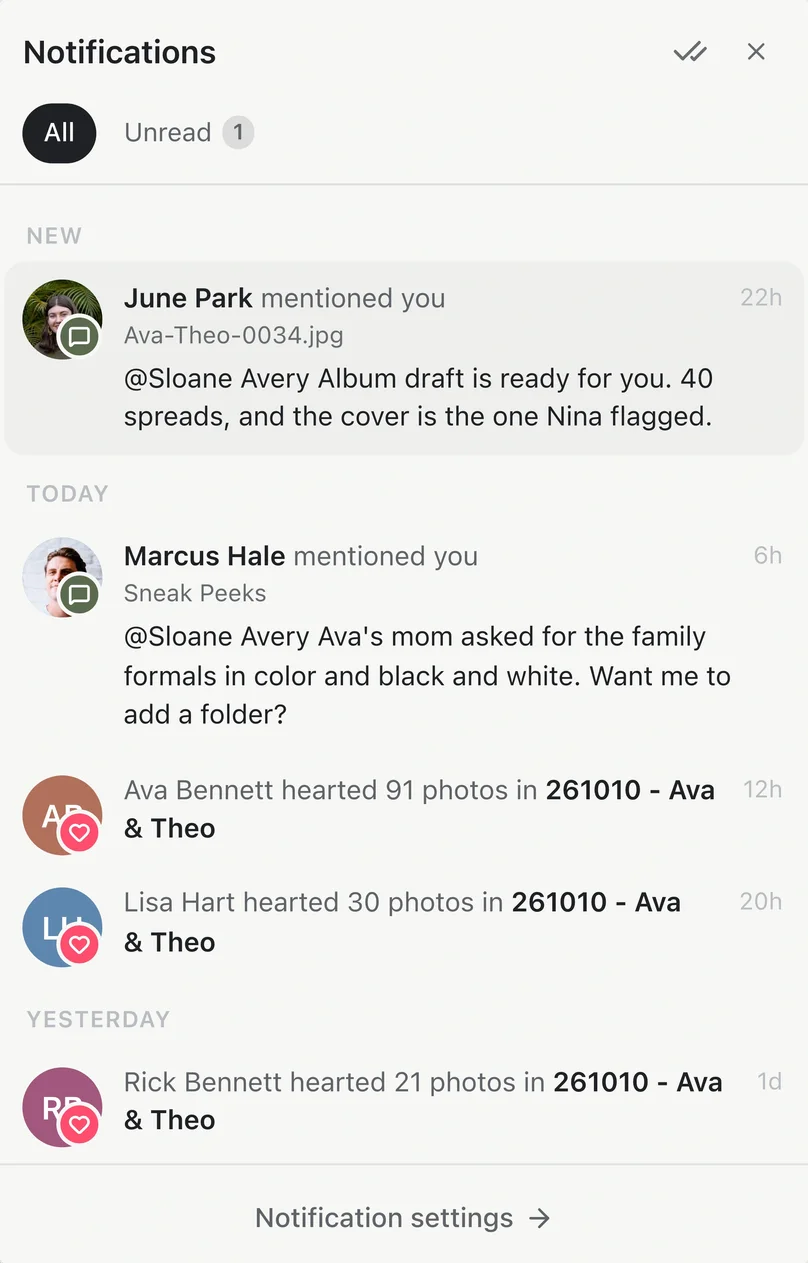
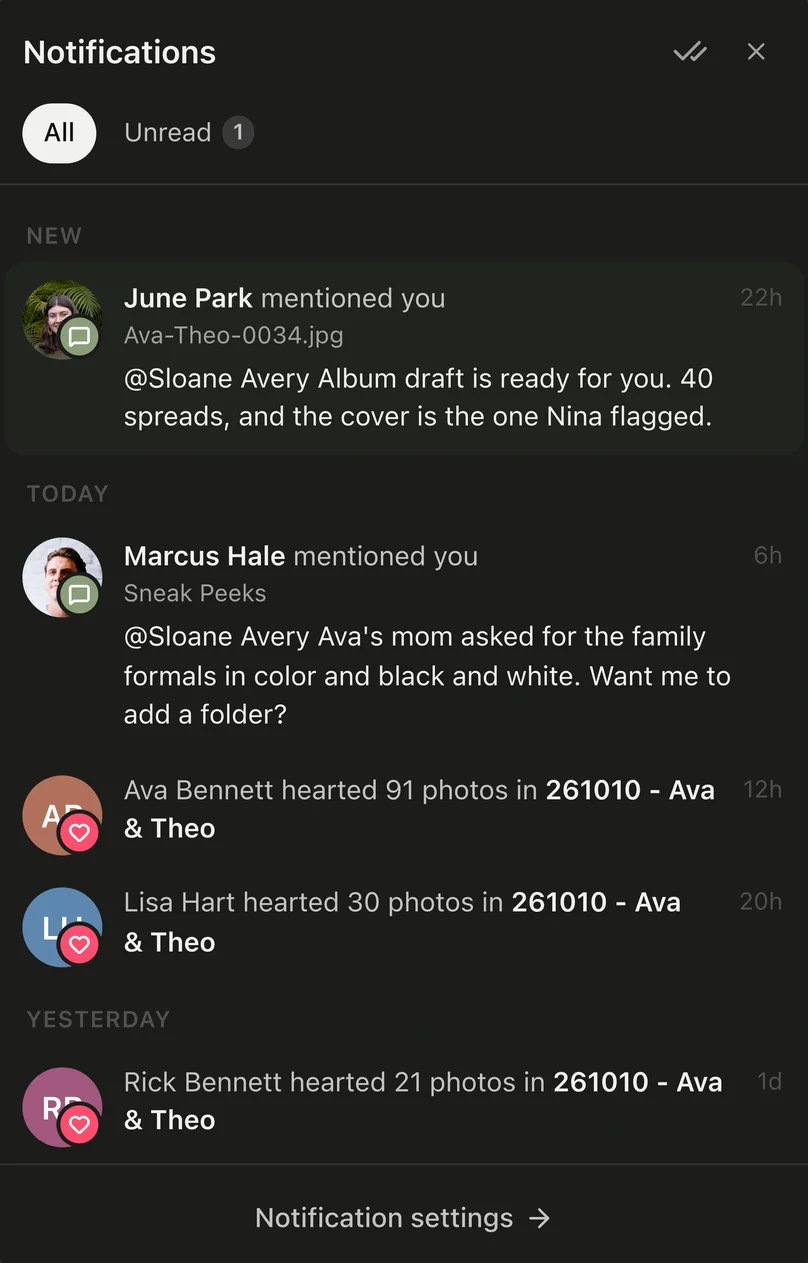
Type @ and a name, or use Mention someone. The person you mention gets it in their Notifications and by email, even if they muted the file.
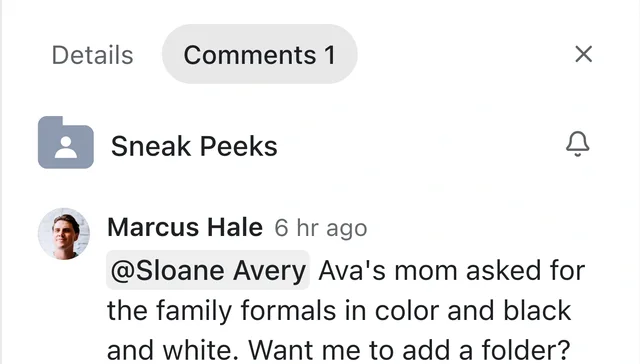
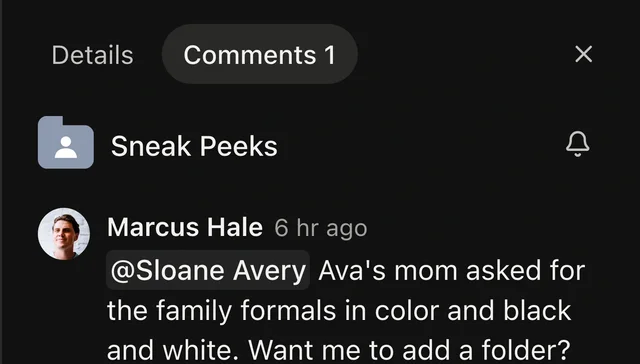
If they can't open the file yet, Total Vault offers to Share it with them first, as view only. Choose Not now to send the comment anyway.
03Who sees a thread
- Your workspace sees every thread.
- People you shared the file with see threads set to Everyone with access.
- Client gallery visitors don't see comments, unless you turn on Comments for an anyone-with-the-link share. Then visitors can comment under their name.
- When guests have access, you choose who sees a new thread before you send it. A lock marks Only your workspace sees this.
04Keep the noise down
- Mark done folds a finished thread away. Reopen brings it back.
- Mute, except mentions stops notifications for that file but still tells you when someone mentions you.
- In Notifications, Mark all as read clears the bell.